

How to set up Google Search Console?
To set up Google Search Console, add your website, choose a property type (domain or URL prefix), verify ownership using DNS or HTML tag, and submit your sitemap.
If you want your website to appear on Google, the first step is to set up GSC.
Without this, Google cannot properly track, index, or rank your website.
In this guide, you’ll learn how to set up GSC step-by-step; even if you’re a beginner.
What You Need Before Setup
Before starting, make sure you have:
- A website or domain
- Access to domain DNS or hosting
- Gmail account
Step-by-Step Guide to Set Up Google Search Console
Step 1: Go to Google Search Console
Visit the official website and click Start Now.
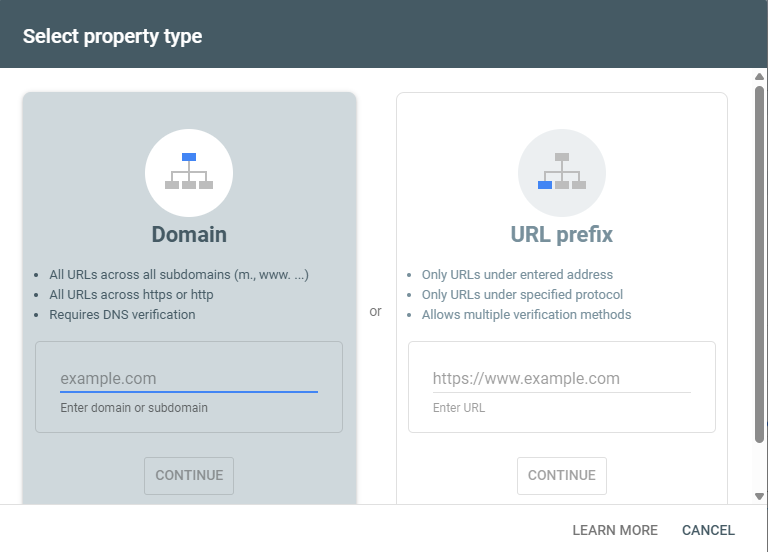
Step 2: Add Property (Website)
You’ll see two options:
✅ Domain Property (Recommended)
- Covers full domain (https, http, www, non-www)
✅ URL Prefix Property
- Only tracks specific URL version
Recommendation: Use Domain Property for complete data.
Step 3: Verify Ownership
This is the most important step.
🔐 Verification Methods:
1. DNS Verification (Recommended)
- Add TXT record in domain DNS
2. HTML File Upload
- Upload file to root directory
3. HTML Tag
- Add meta tag in website header
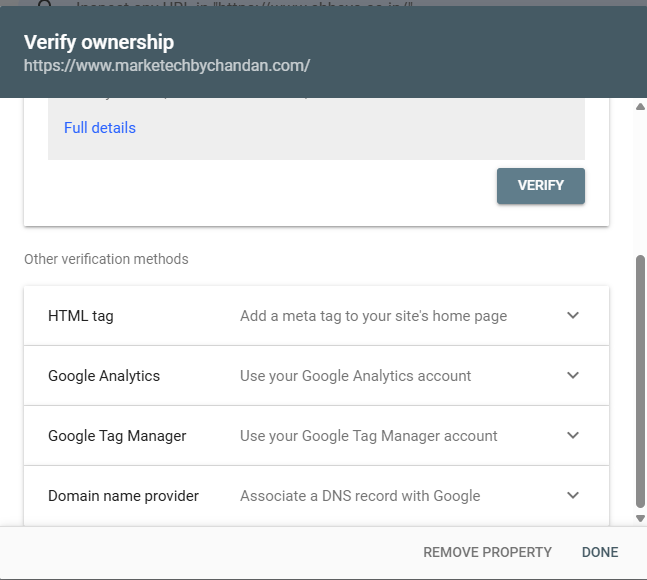
4. Google Analytics / Tag Manager
Pro Tip (Important):
DNS verification is best because it verifies your entire domain.
Common Setup Mistakes
❌ Choosing wrong property type
❌ Incorrect DNS record
❌ Not submitting sitemap
❌ Removing verification accidentally
Conclusion
Setting up Google Search Console is the first step of SEO success.
Once it’s done, you’ll start getting real data from Google that can help you grow traffic and rankings.
Learn from : Set Up Google Search Console
FAQs
Domain property is recommended for full tracking.
DNS verification may take a few minutes to hours.
No, beginners can easily set it up.