


AI video tools(Google Flow Tutorial) have improved fast, but most still struggle with one core problem: consistency. A character’s face changes between clips, clothing shifts without reason, and the same “room” looks different from shot to shot. Google Flow, powered by the Veo 3.1 model, is built specifically to solve this. In this guide, we walk through what makes Google Flow different from standard text-to-video generators, and give a full hands-on walkthrough of the interface, from setting up a project to generating and extending a finished video.
▶ Watch the full video: Google Flow Tutorial with Veo 3.1: MarkeTech by Chandan
Video Timeline: Jump to Any Section
| Time | Section |
|---|---|
| 00:00 | Introduction to Google Flow and Veo 3.1 |
| 02:10 | Why Google Flow Stands Out: Consistency and Control |
| 03:37 | Accessing Google Flow and Interface Walkthrough |
| 04:40 | Character Library and Scene Management |
| 05:48 | Navigation Bar, Settings, and Help Center |
| 07:00 | Prompting the AI Video Agent |
| 09:28 | Reviewing the Generated Storyboard Grid |
| 11:55 | Generation Settings, Model Selection, and Credit Usage |
| 14:08 | Video Generation and Timeline Playback |
| 16:14 | Extending Video Length and Camera Angles |
| 18:36 | Practical Use Cases and Free vs Pro Plans |
| 19:11 | Summary and Next Video Teaser |
What Is Google Flow : Google Flow Tutorial
Google Flow is Google’s AI creative video generation platform, built on top of the Veo 3.1 video generation model. Unlike basic text-to-video tools that generate isolated clips from a single prompt, Google Flow is designed for building connected, multi-shot video sequences. With the Veo 3.1 integration, it adds several upgrades over earlier tools, including consistent characters across multiple frames, image-to-video conversion, AI voice-overs, and direct camera movement controls.
Why Google Flow Stands Out: Consistency and Control
Most AI video generators suffer from the same limitations: flickering between frames, faces that distort slightly from one clip to the next, or characters whose clothing and surroundings change without explanation. This makes it difficult to build any video longer than a single short clip without it looking disjointed.
Google Flow addresses this directly. In a demonstration scenario, a story is built around a student who attends a coaching center and eventually gets hired, and the same face and setting are maintained consistently throughout every scene. This kind of scene and character memory is what separates Google Flow from a typical single-prompt video generator.
Accessing Google Flow: Interface Walkthrough
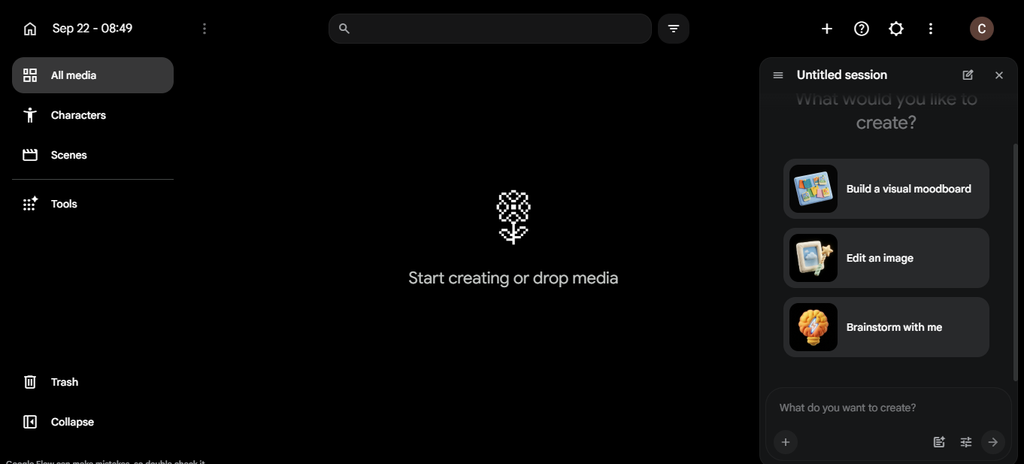
To get started, search for Google Flow and navigate to flow.google.com. From there, you can create a New Project, which becomes the container for all assets related to that video. Project folders can be renamed for easy organization, and the left sidebar gives quick navigation across All Media, Characters, Scenes, and Trash, along with an option to collapse the sidebar for a cleaner working view.
Character Library and Scene Management
Google Flow includes a character library with pre-built templates, such as personas labeled The Eccentric, The Professional, and The Wildcard, or you can create a fully custom persona from scratch. Assets across the project can be searched and filtered by media type, whether images, videos, or scenes, as well as by duration and aspect ratio, which makes managing longer projects with multiple assets much easier.
Navigation, Settings, and Help Center
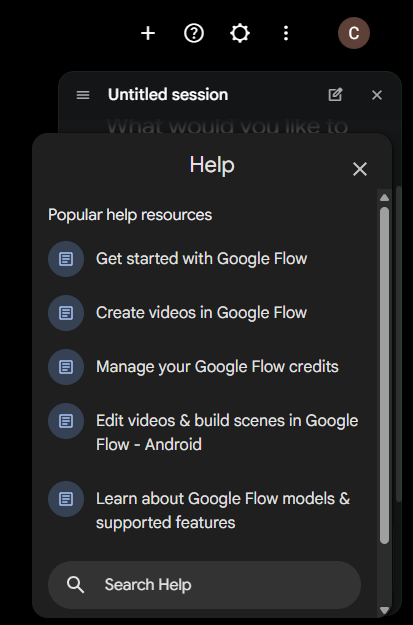
Beyond the core creation tools, Google Flow lets you upload custom assets and organize them into collections, and includes a built-in Help FAQ popup for quick reference. The interface view itself is configurable, including switching between Grid and Batch display modes, adjusting thumbnail sizing, enabling audio hover previews, and toggling prompt auto-clear behavior between generations.
Prompting the AI Video Agent
Video creation starts with a simple prompt. In this walkthrough, the starting prompt was: “I need to make a video for my new offline coaching center for Digital Marketing.” From there, Google Flow’s conversational AI agent asks a series of clarifying questions, covering tone, setting, key selling points, and visual style, before moving forward with the project.
Reviewing the Generated Storyboard Grid
Once the agent has enough information, it proposes a full script along with a character breakdown, for example a student character, a tutor character, classroom props, and interactive screens. Before any generation credits are spent, Google Flow produces a multi-panel visual storyboard grid, letting you verify how each scene will look and catch issues early, rather than discovering problems after a full video has already been generated.
Generation Settings, Model Selection, and Credit Usage
Google Flow gives control over output ratio, supporting both 16:9 widescreen and 9:16 vertical formats for short-form content. You can also choose between different image and video engines, including Nano Banana 2 Lite, Omni 1.1 Flash, and Veo 3.1, which itself offers Lite, Fast, and Quality modes.
Generation speed and quality directly affect credit consumption. As an example from this walkthrough, one generation used 12 credits out of a 50 daily free credit allowance, which is an important factor to plan around if you are testing multiple scene variations in a single session.
Video Generation and Timeline Playback
After approving a sequence, the platform renders the animated video. The completed sequence, an 8-second clip in this example, can then be reviewed along a timeline to verify character continuity and visual transitions across each individual shot before moving forward.
Extending Video Length and Camera Angles
For longer videos, the Add Clip or Extend tool, using Veo 3.1 Lite, allows a project to be prolonged up to 40 seconds. Camera behavior can also be refined at this stage, including a slow push-in, a wide pan, focal shifts, and panoramic pans. Intermediate prompt adjustments let you modify specific elements of a shot without needing to regenerate the entire sequence from scratch, which saves both time and generation credits.
Practical Use Cases and Free vs Pro Plans
Google Flow is most useful for content creators, digital marketers, ad agencies, and video producers who need consistent, branded video content without a full production setup. The free tier includes 50 daily credits, which is enough for testing and short projects. Paid subscription tiers offer significantly more credits, over 1,000, which supports longer, single-take projects without hitting daily generation limits.
Final Takeaway
Google Flow, powered by Veo 3.1, addresses the biggest weakness in AI video generation: consistency. With character memory, scene continuity, a visual storyboard review step, and detailed camera controls, it moves AI video generation closer to an actual production workflow rather than a series of disconnected clips. For marketers and agencies exploring AI-generated video content, understanding the credit system and generation settings covered in this guide is a practical first step before building a full campaign around it.
Google Flow is Google’s AI creative video generation platform, built on the Veo 3.1 video generation model, designed for creating connected, multi-shot video sequences with consistent characters and scenes.
Most AI video tools generate isolated clips that can flicker or change character appearance between shots. Google Flow maintains character and scene consistency across multiple frames, and adds features like image-to-video conversion, AI voice-overs, and direct camera movement controls.
You can access Google Flow by going to flow.google.com and creating a new project from the dashboard.
Google Flow offers 50 daily free credits on its free tier. Paid subscription tiers offer over 1,000 credits, which supports longer, single-take video projects.
Google Flow offers multiple image and video engines, including Nano Banana 2 Lite, Omni 1.1 Flash, and Veo 3.1, with Veo 3.1 available in Lite, Fast, and Quality modes.