


Add a website to Google Search Console helps you monitor how your website performs in Google Search, identify indexing issues, and understand which search queries bring visitors to your site.
In this guide, you will learn how to add your website to Google Search Console, choose between Domain and URL-prefix properties, verify website ownership, and submit your XML sitemap. You will also learn how to troubleshoot common setup problems.
What Is Google Search Console?
Google Search Console (GSC) is a free platform that allows you to:
- Monitor your website’s search performance
- Submit XML sitemaps
- Check indexing status
- Identify technical SEO issues
- Track clicks, impressions, and rankings
- Improve your website’s visibility on Google
If you own a blog, business website, or eCommerce store, setting up GSC should be one of your first SEO tasks.
What You Need Before You Start
Before adding your website, make sure you have:
- A Google account
- Access to your website
- Access to your domain DNS settings (for Domain verification)
Step 1: Open Google Search Console
Visit the official Google Search Console website: https://search.google.com/search-console
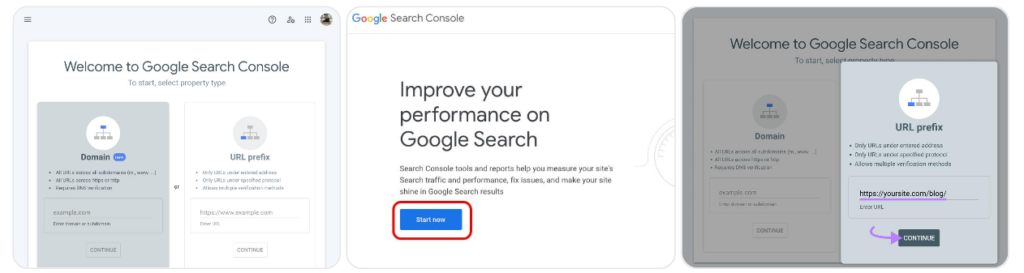
Click on Start Now and sign in using your Google account.
Here is the complete video for better understanding of how to verify your website in Google Search Console.
Step 2: Domain vs URL-Prefix Property: Which Should You Choose?
You’ll see two options:
Domain Property
Covers all versions of your website:
- example.com
- www.example.com
- https://example.com
- http://example.com
URL Prefix Property
Tracks only the exact URL you enter.
Google Search Console offers two property types.
- Domain property: Covers all subdomains and protocols of your domain. For example,
example.comincludes bothwww.example.comandhttps://example.com. Domain properties require DNS verification. - URL-prefix property: Covers only URLs that begin with the exact prefix you enter. For example,
https://www.example.com/is different fromhttps://example.com/. URL-prefix properties support several verification methods.
If you want to monitor your entire domain, choose a Domain property and verify it through DNS. If you prefer a specific website version or need another supported verification method, choose a URL-prefix property.
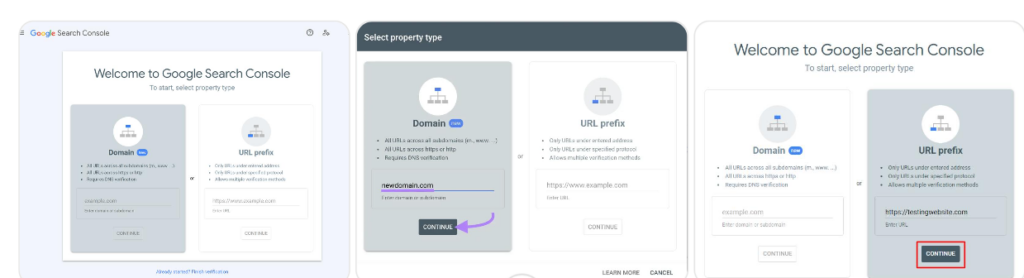
Step 3: Enter Your Website URL
For URL Prefix:
Example:
https://yourwebsite.comMake sure you enter the complete URL including:
- https://
- www (if applicable)
Then click Continue.
Step 4: Verify Website Ownership
Google needs proof that you own the website.
There are several verification methods.
Method 1: HTML File Upload
- Download the verification file from GSC.
- Upload it to your website’s root directory.
- Click Verify.
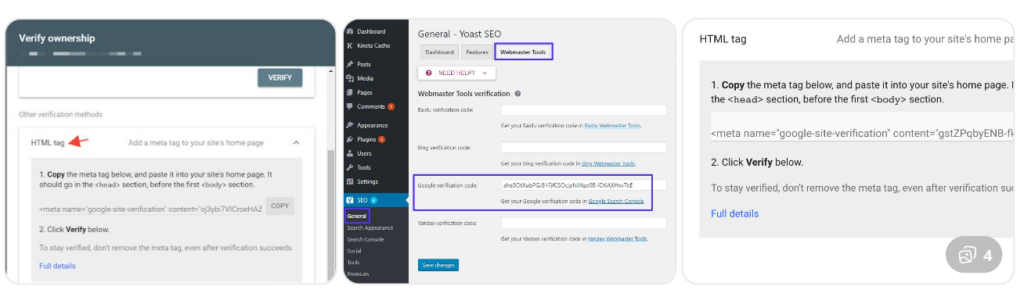
Method 2: HTML Tag (Recommended for WordPress)
Copy the meta tag provided by Google.
Example:
<meta name="google-site-verification" content="XXXXXX" />Paste it inside your website’s <head> section using:
- Yoast SEO
- Rank Math
- Elementor Custom Code
- Header Footer plugins
Click Verify.
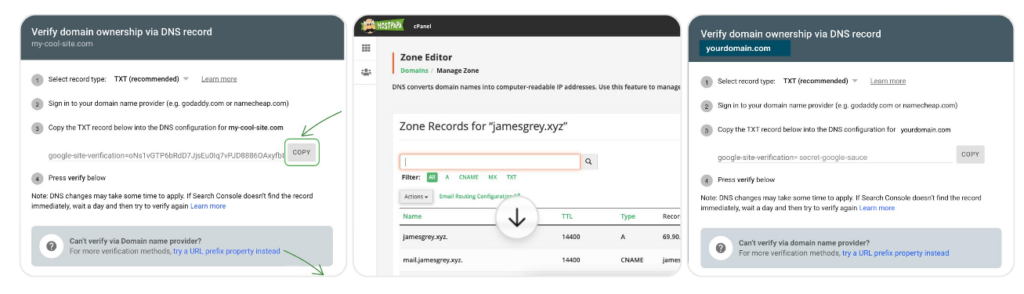
Method 3: DNS Verification
Best for Domain Property.
Steps:
- Copy the TXT record from Google.
- Log in to your domain provider.
- Open DNS settings.
- Add the TXT record.
- Save changes.
- Return to GSC and click Verify.
Step 5: Submit Your XML Sitemap
Once verification is complete:
Go to:
Indexing → Sitemaps
Enter:
https://yourwebsite.com/sitemap.xmlThen click Submit.
Submitting a sitemap helps Google discover URLs on your website, but it does not guarantee faster crawling or indexing.
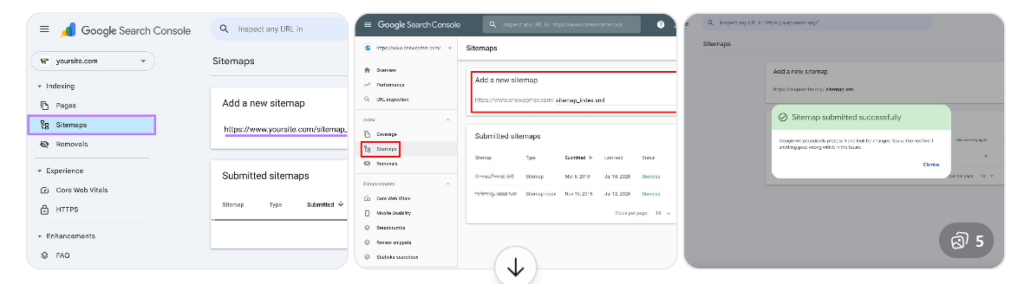
How to Submit Your Sitemap to Google Search Console
- Open your website’s XML sitemap in a browser. For websites using Yoast SEO, the sitemap index is commonly available at
https://www.marketechbychandan.com/sitemap_index.xml. - Open Google Search Console and select your website property.
- Go to Indexing → Sitemaps.
- Enter your sitemap URL and click Submit.
- Check the status to see whether Google could read the sitemap.
If the URL does not open, check your WordPress SEO plugin settings and confirm the correct sitemap URL before submitting it. Submitting a sitemap helps Google discover URLs, but it does not guarantee that every page will be indexed.
Step 6: Wait for Data Collection
After setup:
- Search performance data may take 24–48 hours.
- Indexing reports will gradually appear.
- Google will begin monitoring your website.
Don’t panic if you don’t see data immediately.
Once your website is verified, learn how to submit your sitemap to Google Search Console so Google can discover your important URLs.
Common Mistakes to Avoid
Using the Wrong URL
Always use the correct version:
- https://
- www/non-www
Forgetting Sitemap Submission
Adding your website isn’t enough.
Always submit your XML sitemap.
Removing Verification Code
Keep the verification method active.
Removing it can disconnect your property.
Why Google Search Console Matters for SEO
Google Search Console helps you:
- Find indexing issues
- Monitor keyword performance
- Improve click-through rates
- Discover technical errors
- Track Core Web Vitals
- Understand how users find your site
It’s one of the most important free SEO tools available today.
Once Google Search Console starts collecting data, learn how to use the Performance Report to analyse clicks, impressions, CTR and search queries.
Frequently Asked Questions
Yes. Google Search Console is completely free to use.
Most verification methods work instantly. DNS verification may take a few minutes to several hours.
For most beginners, URL Prefix is easier. Domain Property provides more complete data.
Yes. It helps monitor performance, indexing, and technical SEO health.
Adding your website to Google Search Console is one of the first and most important steps in SEO. Within a few minutes, you’ll gain access to valuable insights that can help improve your website’s visibility, traffic, and overall search performance.
If you’re serious about growing your website through Google, set up Google Search Console today and start monitoring your SEO journey.





One Response